
You can unblock and watch Amazon Prime Video content with Surfshark by setting up the VPN’s app on your mobile devices/PCs and Android TV, Fire TV, or Apple TV devices, or by using a router or PC hotspot for other smart TVs and gaming consoles.
Likewise, you can use Surfshark to access Amazon Prime Video content unavailable in your region, even though the service is supported. For example, you can’t get some titles on the Amazon Prime Video (Nigeria) version, but they’re on the US version.
So, if you’re ready to unblock access to Amazon Prime Video, get geo-restricted content, and stream without buffering, continue reading.
Stream Amazon Prime Video With Surfshark
Surfshark’s Black Friday sale is on: Surfshark One costs the Starter price, $2.49 a month on the 2-year plan with 3 months free.
How to Use Surfshark to Unblock Amazon Prime Videos?
Surfshark unblocks Amazon Prime Video on numerous platforms, as I’m about to show you below. But first, a sneak peek.
| Amazon Prime Streaming Platform | Example Devices | Best Surfshark Compatibility |
|---|---|---|
| Mobile | iOS and Android | Mobile app |
| PC | Windows, Mac, Linux, and Chromebook | PC app |
| Gaming consoles | Xbox and PlayStation | Router setup, PC hotspot |
| Android TV | Android Smart TVs | Android app |
| Smart TVs | Samsung, LG, etc. | Router, PC hotspot |
Now, let’s get to it.
How to Unblock Prime Video With Surfshark on Mobile?
The best way to unblock and watch Amazon Prime Video on your mobile device is by using the Surfshark app.
Here’s how to do this:
- Buy a Surfshark subscription. Enjoy these HUGE discounts while they last.
- Download the Surfshark app to your mobile device. I’ll use iOS for this example.

- Login to the Surfshark app with your account credentials.
- Choose the best protocol for speed and security. Go to Settings > VPN Settings > Protocol. Select WireGuard (best speed and security) or IKEv2 (more speed on stable connections).

- Enable the VPN kill switch to prevent IP leaks when watching Amazon Prime Video. Go to Settings > VPN Settings > toggle “Kill Switch.”

- Tap the “Locations” icon and search for a preferred streaming location. I’ll use the United States since it has the largest Amazon Prime Video library.

- Connect to any of the US servers you see.
- Wait for the connection confirmation. Then launch your Amazon Prime Video app.
- Log in to the app and search for your preferred content.
- Start streaming anything, anywhere!
How to Watch Amazon Prime Video With Surfshark on PC?
Suppose you want a bigger screen experience than your phone.
In that case, you can also unblock Amazon Prime Video via Surfshark on your PC.
Here’s how you set up the fun with this reliable VPN service:
- Purchase a Surfshark plan. Save more with these discount offers.

- Download the Surfshark app to your PC. I’ll use the Windows PC app for this example.

- Install the app, launch it, and log in with your Surfshark account details.
- Choose the best protocol for speed and security. Go to Settings > VPN Settings > Protocol. WireGuard is the best protocol to use on PCs.

- Enable the VPN kill switch to safeguard your true IP address/location if the VPN connection drops. Go to Settings > VPN Settings > toggle “Kill Switch.”

- Tap the “VPN” tab and search for a preferred server location. I’ll use the United States.

- Connect to any of the US servers.
- Wait for the connection confirmation. Then test for leaks. I use www.ipleak.net to ensure my device is now transmitting the Surfshark-assigned IP address.

- Launch your browser in incognito/private browsing mode, then go to Amazon Prime Video’s official website.
- Login to your Amazon Prime account.
- Search for any title you want and enjoy the streaming service.

How to Stream Prime Video With Surfshark on Gaming Consoles?
Amazon is generous enough to allow you to stream originals like Jack Ryan, The Romanoffs, and Too Old to Die Young on your Xbox or PlayStation gaming consoles.
The issue is that Surfshark doesn’t have native apps for these units.
Surfshark also shut down its SmartDNS service in February 2026, so the quickest workaround is to share a VPN connection from a Windows PC as a Wi-Fi hotspot. Here’s how to set it up:
- If you don’t have a Surfshark subscription yet, grab these amazing discounts to buy one.
- Install the Surfshark app on your Windows PC and log in.
- Go to Settings > VPN Settings > Protocol and choose OpenVPN (UDP), which Surfshark’s own hotspot guide calls for. Stay disconnected for now.
- Open Windows Settings > Network & Internet > Mobile hotspot and switch the hotspot on.
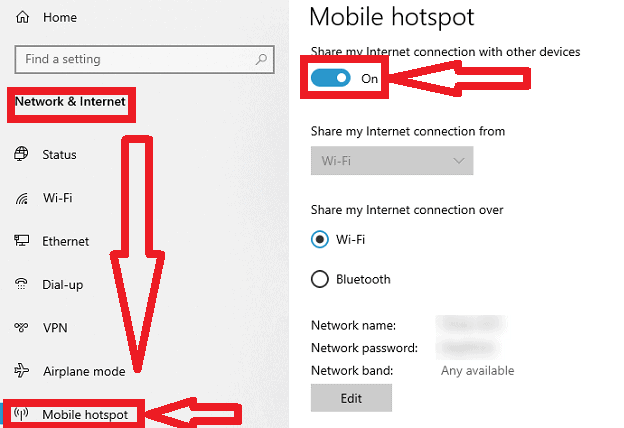
- Type “Network connections” into the Windows search bar and open it. Right-click the Surfshark DCO adapter (listed as “Data Channel Offload for Surfshark”) and select Properties.
- Open the Sharing tab, tick “Allow other network users to connect through this computer’s Internet connection,” pick the new hotspot adapter from the drop-down, and click OK.

- Back in the Surfshark app, connect to a US server (or any country whose Prime Video library you want).
- On your Xbox or PlayStation, open the network settings and join the hotspot’s Wi-Fi network.
- Launch the Amazon Prime Video app from your gaming console and stream content anywhere.
If you only want the US library, NordVPN still offers SmartDNS, which you type into your console’s DNS settings instead of running a hotspot (setup guide).
How to Watch Amazon Prime Video With Surfshark on Smart TVs?
Android Smart TVs have the luxury of downloading the Surfshark app (like an Android phone) to unblock Amazon Prime Video, but that’s not the same for non-Android smart TVs like LG, Samsung, Sony, Hisense, etc.
In this case, you can also use the Windows hotspot method discussed for consoles above.
Or, to cover every TV in the house without keeping a PC on, install Surfshark on your router instead.
Here’s how:
- Buy any Surfshark plan you like. I recommend the multi-year deals since they give the best discounts.
- Check that you have a VPN-compatible router. I’ve included a video to check your router’s compatibility below.

- If your router is supported, log in to your Surfshark member area.
- Click “VPN” on the left menu pane, then click “Manual setup.”

- Click “Router.”

- Select the preferred protocol you want to set up on your router. I prefer WireGuard or IKEv2 since we need fast streaming speeds that we might not get with OpenVPN. I clicked “WireGuard” for this example.
- Follow the instructions in the Surfshark video below to set up the rest of the connection.

- Optional: You can find specific Surfshark videos for different router types (OpenWRT or DD-WRT) and manual configurations (IKEv2, WireGuard, and OpenVPN).
- Choose a specific server location to broadcast on the router. I recommend the UK, US, or Canada for the largest Amazon Prime Video libraries.
- Connect your smart TV to the broadcasted router network.
- Unblock Amazon Prime Video and stream your preferred content anywhere.
What Makes Surfshark Compatible With Amazon Prime Video?
Surfshark isn’t just compatible with Amazon Prime Video because it’s a VPN.
I’ve tested other VPN providers with the service that just fell flat.
So, here are a few reasons to use this VPN to unblock and access the streaming platform anywhere:
Supported Servers
Surfshark has 4,500+ servers in 100 countries, making it ideal for accessing Amazon Prime Video content anywhere.

I’m particularly impressed by the 600+ USA servers, 360 UK servers, and 120+ Canadian servers to unblock some of the largest Amazon Prime Video content globally. You don’t have to limit yourself to these since there are more locations for niche content.
Fast Streaming Speeds
Surfshark delivers a no-lag streaming experience whenever I binge-watch Meet Cute, Ivanna, The Resort, and other content on Amazon Prime Video.
But I didn’t want you to take my word for it, so I tested the provider on several connections with different ISPs and servers. Here are some results.
On a 25Mbps connection (New Zealand server):

On a 45 Mbps connection (Canada server):

These speeds enable HD and 4K streaming on any device, so you can enjoy your buffer-less content on Amazon Prime Video.
Unlimited Connections
Amazon allows three users to stream content simultaneously via one account.
Surfshark does better with unlimited simultaneous connections.

So, any number of users can connect to a Surfshark server at the same time to unblock and stream Amazon Prime Video securely.
Multi-Platform Support
Besides the speeds and simultaneous connections, I’m impressed with how Surfshark has an offering for all devices you can stream Amazon Prime Video on.

There are native apps for PCs, smartphones, Android TV, Fire TV, and Apple TV, plus router and Windows hotspot setups for smart TVs and gaming consoles that can’t download the native VPN app.
The best part is that everything comes under the same affordable subscription plan.
So, you don’t have to pay extra to watch Amazon Prime on a preferred screen.
Ease of Use
You’ll notice that the Surfshark app interface and settings look the same on PC and mobile devices. This makes the VPN easier to use, ensuring you can switch between streaming platforms and not have to re-learn how to use the VPN.
Affordability and Guarantee
Above all, Surfshark is one of the most affordable VPN providers I’ve used with Amazon Prime Video, and I’ve used some juggernauts like NordVPN and ExpressVPN.
In fact, it’s the only one of these to offer unlimited simultaneous connections with its great pricing.
You can even get these Surfshark discounts to save more and qualify for a 30-day money-back guarantee. Our Surfshark coupon codes page also shows what each plan renews at once the first term ends.
FAQs
Can I Use Surfshark's Free Trial to Access Amazon Prime?
You can access Amazon Prime with the Surfshark free trial.
However, the trial lasts only 7 days and starts on Surfshark’s website with a 12- or 24-month plan, which may not give you enough time to test the VPN with the streaming platform.
Thus, it’s best to get the Surfshark 30-day money-back guarantee promise instead to test and unblock Amazon Prime Video on PC, mobile phones, gaming consoles, and smart TVs.
Will Amazon Prime Ban My Account for Using Surfshark VPN?
Amazon Prime won’t ban your account for using Surfshark to stream its services. However, the streaming service has VPN blocks in place to prevent users from circumventing its geo-restrictions, and it may catch on to some overused Surfshark IP addresses.
In this case, you can switch servers when Amazon Prime Video detects one and keep unblocking your preferred content library.
Surfshark costs $2.49 a month on the 2-year plan; our Surfshark price guide compares every plan and renewal, and new customers can try Surfshark free for 7 days on its website before the first charge.
It’s Streaming Galore!
You don’t have to search endlessly for a title unavailable in your region anymore when you can unblock it with Surfshark.
Given the VPN’s fast speeds, multi-platform compatibility, and haul of relevant servers for Amazon Prime Video, it’s little surprise that it performed so well for me.
Ready to have a taste of Amazon’s rich content library? Grab these Surfshark discounts to save more and get a 30-day money-back guarantee.
More Surfshark guides
 Surfshark Price 2026: How Much It Costs, Plans From $2.49/mo
 Surfshark Black Friday 2026: One for $2.49/mo, 87% Off + 3 Months, Live Now
 How To Watch Netflix With Surfshark? (2026)
 Does Surfshark Work With Twitch? (2026)
 How to Watch BBC iPlayer With Surfshark VPN?
 Does Surfshark Work With Bilibili? (2026)

