
Yes, Surfshark has a full Windows app: it runs on 64-bit Windows 10 and on Windows 11, including ARM-based laptops such as the Surface Pro. Download it from Surfshark’s website or the Microsoft Store (both install the same app, version 6.20 when we checked on 22 October 2026), log in and click Quick-connect.
One subscription covers every PC and phone you own, with no device limit, and the 2-year plan costs $2.49 a month during Surfshark’s Black Friday sale. Below are the download options, the setup steps and fixes from Surfshark’s own help center, and the settings worth changing.
Surfshark for Windows at a Glance
| Surfshark for Windows | |
|---|---|
| Works on | Windows 11 (x64 or ARM64) and 64-bit Windows 10 |
| Older PCs | A legacy app for Windows 7, 8, 8.1 and 32-bit Windows 10, without new features |
| Where to get it | Surfshark’s website or the Microsoft Store (same installer) |
| Current version | 6.20 (22 October 2026) |
| Download size | About 109 MB (x64) or 99 MB (ARM64) |
| Needs | 4 GB of RAM and Microsoft .NET 8 or later |
| Protocols | WireGuard and OpenVPN (UDP or TCP) |
| Devices per plan | Unlimited |
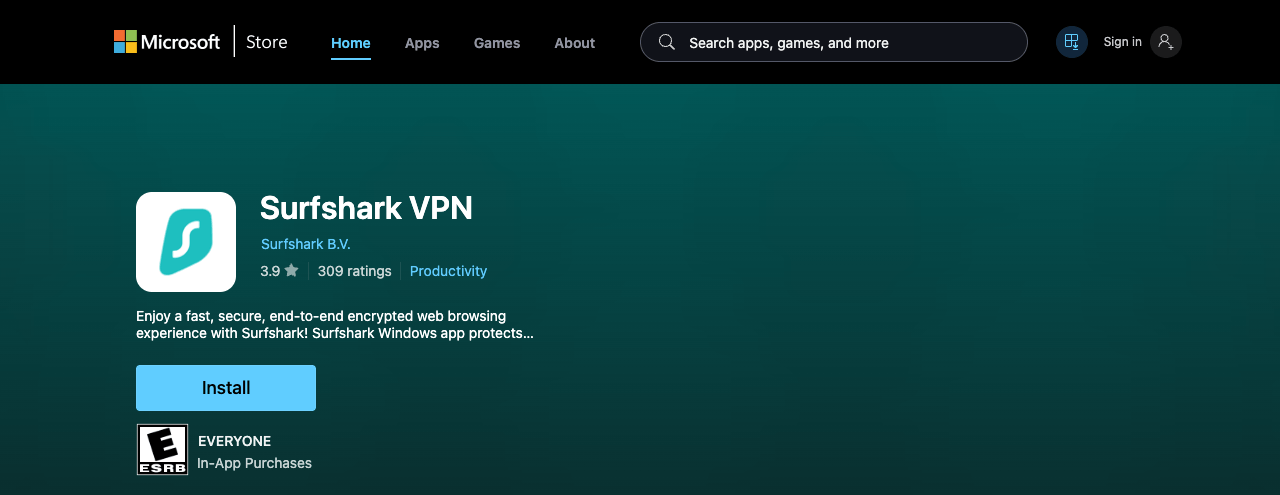
| Microsoft Store rating | 3.9 out of 5 from 309 ratings |
| Price | $2.49/mo on the 2-year plan, plus a 7-day free trial |
New to the service? What Surfshark is and how it works covers the basics in a few minutes.
Where to Download Surfshark for Windows
From Surfshark’s Windows download page or the Microsoft Store, and it doesn’t matter which. The Store listing simply fetches Surfshark’s own installer from Surfshark’s servers: on 22 October 2026 both routes delivered version 6.20.0.999.
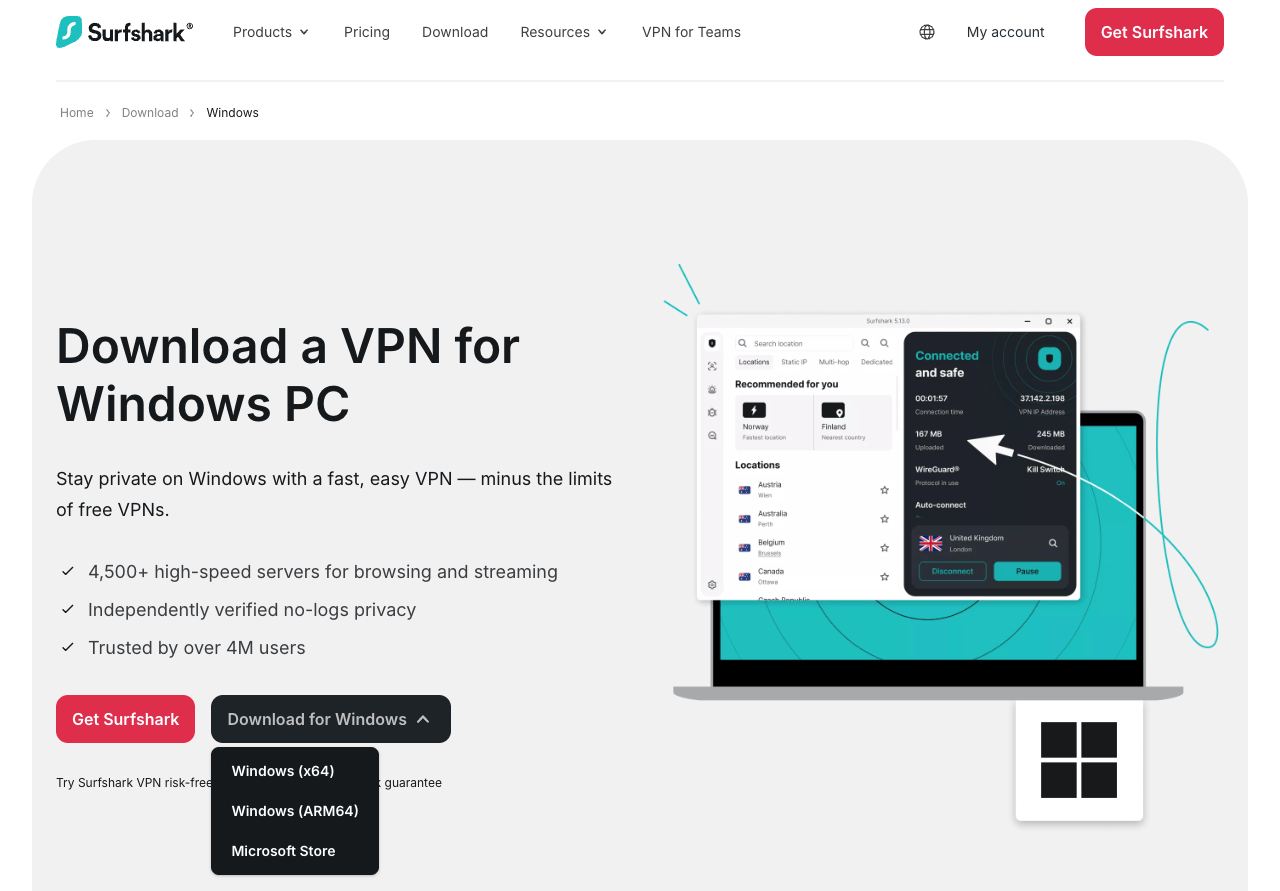
On the download page, Download for Windows opens three choices:
- Windows (x64) for most PCs with an Intel or AMD processor
- Windows (ARM64) for ARM-based laptops; Surfshark names the Microsoft Surface Pro, Samsung Galaxy Book and HP Elite Folio
- Microsoft Store, which opens the Store listing
Not sure which you have? Open Settings > System > About and look at System type: it says x64-based processor, ARM-based processor or 32-bit operating system.
The Store route suits anyone who prefers installing from Microsoft: the listing names Surfshark B.V. as the publisher and shows a 3.9-star average from 309 ratings.
Still on Windows 7, 8 or 8.1, or 32-bit Windows 10? Surfshark no longer supports those systems. It still offers an older legacy app for them, “with fewer security features and updates” (the legacy installer on its servers was last changed in December 2022). Surfshark’s advice is to update Windows; if you can’t, a manual WireGuard or OpenVPN connection, or the Surfshark browser extension, will do.
How to Install and Set Up Surfshark on Windows
These steps follow Surfshark’s Windows setup guide:
- Get a Surfshark plan, or start the 7-day free trial, on Surfshark’s website.
- On Surfshark’s Windows download page, click Download for Windows and choose Windows (x64), Windows (ARM64) or Microsoft Store.
- Open your Downloads folder and double-click the SurfsharkSetup file.
- When Windows asks whether you want to allow this app to make changes to your device, click Yes.
- Wait for the installation to finish. The app opens by itself a few seconds later.
- Click Log in, enter the email address and password you signed up with, and click Log in again. If you’ve turned on two-factor authentication, enter the code and click Verify.
- Click Quick-connect. Surfshark picks the fastest available location, usually the one closest to you.
- Run the IP and DNS leak tests on Surfshark’s website to check that your real address is hidden.
Once you’re connected, the same button at the top of the app disconnects or pauses the VPN (for 5 minutes, 30 minutes or 2 hours), and the Surfshark icon in the system tray turns green; gray means you’re disconnected. To change where Quick-connect takes you, click Change on the main screen or go to Settings > VPN settings > Quick-connect.
The Surfshark Windows Settings Worth Changing
Everything below lives under Settings > VPN settings in the Windows app:
| Setting | What it does | My pick |
|---|---|---|
| Protocol | Automatic by default; choose WireGuard (with Surfshark’s post-quantum layer) or OpenVPN UDP or TCP | WireGuard |
| Kill Switch | Cuts your internet if the VPN drops | On |
| Auto-connect | Connects as soon as the PC finds Wi-Fi or Ethernet, to the location you set under Preferences | On |
| Launch app on startup | Opens Surfshark when Windows starts | On |
| CleanWeb | Blocks ads, trackers, malware and phishing sites | On |
| Bypasser | Lets chosen apps and websites skip the VPN, or sends only chosen apps through it | For apps that won’t work over a VPN |
| NoBorders | Helps on networks that restrict VPNs; it usually switches on by itself | Leave it automatic |
| Rotating IP | Changes your IP address every 5 to 10 minutes without disconnecting | Optional |
WireGuard is also Surfshark’s first fix for slow speeds on Windows; our Surfshark WireGuard guide explains why it’s the one to use. The kill switch guide and the CleanWeb guide go deeper on those two features.
To set up Bypasser split tunneling:
- Go to Settings > VPN settings > Bypasser.
- Switch on Bypass VPN (chosen apps skip the VPN) or Route via VPN (only chosen apps use it).
- Click Select apps and tick the apps you want. If one is missing, click Add apps and pick its .exe file.
- For websites, switch on Bypass VPN under Websites / IP addresses, click Add websites or IP addresses, type the address and click Add.
- Reconnect to a server so the list takes effect.
For extra privacy, the MultiHop tab at the top of the server list routes you through two VPN servers: pick a ready-made pair, or click Create Connection to choose both. Our Surfshark servers guide lists what each server type is for, and Bypasser explained covers split tunneling in more depth.
Surfshark Not Working on Windows? Fixes That Work
Every fix below comes from Surfshark’s help center. Check your connection after each step.
Surfshark won’t install
- On a work or school PC, “You do not have permission to install this app” means you don’t have administrator rights. Surfshark suggests its browser extension for Edge, Firefox or Chrome instead.
- Temporarily disable your antivirus, which can block the installation.
- On Windows 7, 8 or 8.1, you need the legacy app.
Surfshark won’t connect, or is stuck on “Connecting”
- Connect manually to a few different countries instead of using Quick-connect (if Detroit fails, try Berlin).
- Go to Settings > VPN settings > Protocol and test WireGuard, OpenVPN UDP and OpenVPN TCP.
- Add Surfshark to your antivirus’s exclusions and remove any other VPN app. Surfshark has step-by-step guides for Norton 360, McAfee, Avast, AVG, Bitdefender, Avira, Kaspersky and Malwarebytes; in Norton, for example, you exclude the C:\Program Files\Surfshark folder from scans.
- Update Surfshark, or reinstall it if it’s already up to date.
- Disable IPv6 in Windows: Surfshark doesn’t support it yet, and it can interfere with the connection.
“Surfshark background service is not running”
Update the app first; Surfshark says that fixes it most often. Then make sure Microsoft .NET 8 or later is installed (Surfshark apps from version 5.12.0 need it), temporarily disable your antivirus, restart the PC and, if none of that works, reinstall.
Kill Switch, Auto-connect or LAN settings won’t change
Restart the app, then the PC. Still stuck? Go to Settings > Help > Diagnostics and click Restore original settings, or reinstall.
Surfshark is slow
Some slowdown is normal: Surfshark says to expect around 30% on Windows. Switch the protocol from Automatic to WireGuard, try servers close to you (the beta Refresh button jumps to another server in the same country on WireGuard), and pause file-sharing apps or other VPNs that compete for the same resources.
How to reinstall Surfshark on Windows
- Open Control Panel and click Uninstall a program.
- Right-click Surfshark, choose Uninstall/Change and click through the steps.
- If an older version left Surfshark TUN or TAP adapters behind, uninstall those too.
- Restart the PC, then download and install the latest app.
An outdated app can also be blocked from logging in; installing the latest download over it fixes that. If you’d rather stop paying, here’s how to cancel Surfshark and get a refund.
How Much Does Surfshark Cost for Windows?
The app is free to download, but you need a subscription to connect, and every plan covers unlimited devices. Surfshark’s prices for US buyers on 22 October 2026, in US dollars before tax, during its Black Friday sale:
| Plan | 2 years + 3 extra months | Adds |
|---|---|---|
| Starter | $67.23 ($2.49/mo) | VPN, CleanWeb, Alternative ID |
| One | $67.23 ($2.49/mo) | Surfshark Antivirus, Alert, scam protection |
| One+ | $107.73 ($3.99/mo) | Incogni data removal |
On a PC, One is the better buy while it costs the same as Starter, because Surfshark Antivirus runs inside the Windows app. Every website purchase has a 30-day money-back guarantee. Our Surfshark price guide compares every plan and length, and the Surfshark free trial guide walks through the 7-day trial.
Prefer NordVPN on Windows?
NordVPN, Surfshark’s sister company, has its own app for 64-bit Windows 10 (version 1607 or later) and Windows 11. It covers 10 devices rather than unlimited, but it runs 7,000+ servers in 150 countries, and its Black Friday deal takes 2-year Basic to $3.49 a month ($94.23 for 27 months). Our NordVPN for Windows guide has the setup steps.
Compare NordVPN – Up to 78% Off
FAQ
Does Surfshark Work on Windows 11?
Yes. Surfshark’s Windows app fully supports Windows 11 on both x64 and ARM64 PCs, as well as 64-bit Windows 10. You can install it from Surfshark’s website or the Microsoft Store.
Is the Microsoft Store Version of Surfshark Different?
No. The Microsoft Store listing installs Surfshark’s own Windows installer, the same version 6.20 that Surfshark’s website offered on 22 October 2026, so you get the same app either way.
Does Surfshark Work on Windows 7 or Windows 8?
Only through an older legacy app. Surfshark no longer supports Windows 7, 8, 8.1 or 32-bit Windows, and the legacy app gets fewer security features and updates. Its alternatives are updating Windows, a manual WireGuard or OpenVPN connection, or the browser extension.
Is Surfshark Free on Windows?
The app is free to download, but you need a subscription to connect. Surfshark’s website offers a 7-day free trial on its 12- and 24-month plans, and the 2-year plan costs $2.49 a month during its Black Friday sale.
How Do I Turn On Surfshark’s Kill Switch on Windows?
Open the Surfshark app, select Settings, click VPN settings and switch on Kill Switch. When the switch is green, it’s on.
Why Is Surfshark Not Connecting on My PC?
Usually a blocked server or protocol, or an antivirus in the way. Surfshark’s fixes, in order: connect to a different country manually, try WireGuard and both OpenVPN options, add Surfshark to your antivirus exclusions, update or reinstall the app, and disable IPv6.
The Bottom Line
Surfshark’s Windows app covers 64-bit Windows 10 and Windows 11, ARM laptops included, and it’s the same app whether you install it from Surfshark’s site or the Microsoft Store. Switch the protocol to WireGuard and turn on the kill switch and auto-connect, and one plan protects every PC you own. Get Surfshark for $2.49 a month on the 2-year plan, with 30 days to change your mind.
More Surfshark guides
 Surfshark Coupon & Promo Codes October 2026: Up to 87% Off
 The Greatest Surfshark Black Friday Deals (2026)
 Surfshark Chrome Extension (2026): How to Install and Use It
 Surfshark for Mac: Setup, Settings and Which Version to Get (2026)
 Does Surfshark Work With Amazon Fire TV Stick? How To Install It?
 How to Quickly Set Up Surfshark on Samsung Smart TV?

