
Being blocked from playing an MMORPG that isn’t offered where you live is a feeling I know all too well. Luckily, with the right VPN, it’s possible!
Lost Ark has been out in North America and Europe since February 2022, so players there no longer need the Russian server this guide was first written for. This guide is for everyone else.
Keep reading if you want to learn how to play Lost Ark from anywhere in the world using NordVPN!
The “Skip Dialogue” Version
Are you one of those players who skip the dialogue and cut scenes?
Here’s the TL;DR version – but be warned, you’ll still need to read the rest of this guide if you want to get it right the first time. (Most screenshots come from this guide’s original 2021 walkthrough of the Russian client, so follow the text where they differ.)
- Find a VPN with fast servers in North America and Europe. My top pick for the Best VPN for Lost Ark is NordVPN, with Surfshark (pictured) a close second.

- Purchase a subscription, download the VPN app, and install the software.
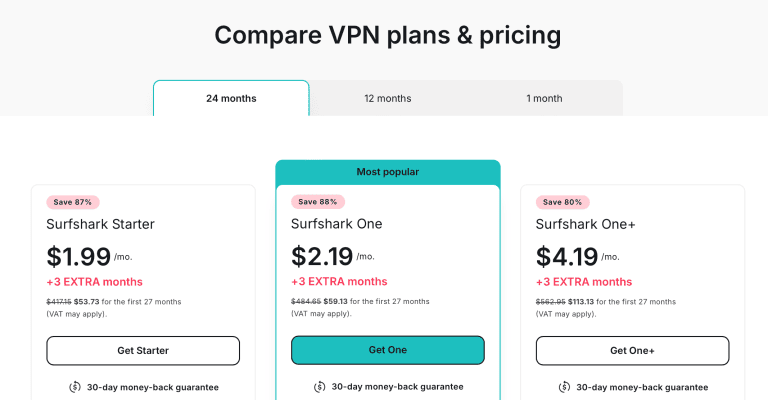
- Log into your VPN account and connect to a VPN server in North America or Europe.

- Create a free Steam account (any email address you can check will do).

- Find Lost Ark in the Steam store and add it to your library – it’s free to play.

- Download and install Lost Ark.

- Launch Lost Ark to make sure it works.

- Pick a North American or European server, create your character, and you’re good to go! The Western version is in English, so there’s no English Translation Patch to install.
The official English launch this guide once told you to wait for arrived in February 2022, so you no longer have to learn Russian or trust a dodgy fan-made “patch” not to infect your computer.
But don’t worry! This won’t be an obvious “Press W to move forward”-type tutorial!
How to Play Lost Ark from Anywhere in the World?

Are you ready to take on Kazeros and his six demonic legions in the world of Lost Ark? By the end of this guide, you will be!
Step 1: Finding a VPN
As I mentioned in the “Skip Dialogue” TL;DR version, you need a VPN with fast servers in North America or Europe to play Lost Ark where the Western release isn’t offered.
The other versions are harder to reach: unless you have a valid South Korean mobile phone number registered with one of the country’s four telecom providers, the South Korean version is off-limits.
Virtual numbers aren’t accepted, either.
As for the Japanese version, it closed on 20 March 2024, so it’s no longer an option. The Western version is the easiest way in: Lost Ark launched in North America and Europe in February 2022, and Amazon Games publishes it on Steam until Smilegate takes over in early 2027.
Read Also: Top VPNs for Japan
This guide used to send you to the Russian version instead, but that route is closed for my top two picks: neither NordVPN nor Surfshark has servers in Russia. The Western version is in English anyway, and all it takes is a server in North America or Europe.
Plenty of VPNs have those. But far fewer are fast enough for an MMORPG – and even fewer are ones you can actually trust.
These are the VPNs I’d use to play Lost Ark:
In my experience, NordVPN works best. It has servers in all 50 US states and across Europe, so there’s always a location close to the Lost Ark region you play on. Surfshark is the more affordable runner-up and has no device limit, while ProtonVPN and CyberGhost are solid alternatives if you already use one of them.
Step 2: Purchase a Subscription and Install the VPN App

This is the easy part.
Assuming you decide to go with NordVPN, you can use this link to get the current discount on its two-year plan!
Surfshark (its two-year deal is pictured above) works the same way: pick a plan, enter your email address, and select a payment option. Surfshark accepts:
- Credit Cards (MasterCard, Visa, AMEX, and Discover)
- PayPal
- Amazon Pay
- Cryptocurrency (Bitcoin, Ethereum, and XRP Ripple)
The payment options available to you might differ slightly depending on where you live.
Once you’ve paid, install the VPN’s Windows app.
Lost Ark is only available for Windows now, so if you’re using Linux on your gaming rig for whatever reason, you’ll need to install Windows on a Virtual Machine (or dual boot) to play.
The same is true for anyone duped into buying a Mac to game on (it’s not impossible, just highly impractical).
Though it’s worth mentioning, NordVPN and Surfshark also have apps for Linux and Mac, so you can still stay safe online while you aren’t gaming.

One NordVPN account covers 10 devices at once, and you can even connect unlimited devices with a single Surfshark account.
Step 3: Connect to a VPN Server
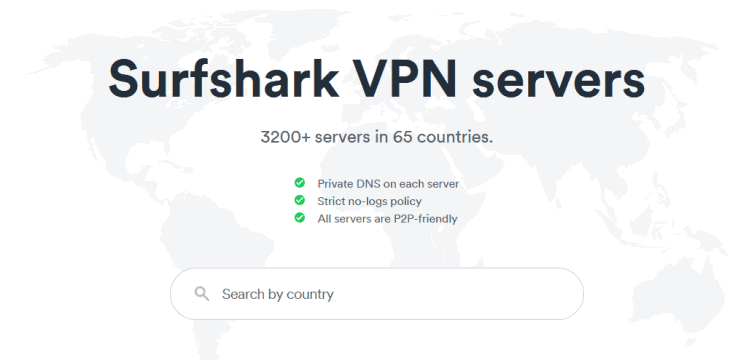
Once you finish installing your VPN app (it should only take 1-5 minutes from clicking “Download” – no restart necessary), launch the app and log into your user account.
To play Lost Ark, you won’t be using the Quick Connect button, as it connects you to the nearest, fastest server – usually one in your own country, where the Western release may not be offered.
Instead, turn on the Kill Switch first. In Surfshark, open the Settings, click on Connectivity, and toggle the Kill Switch to the right (NordVPN has its own Kill Switch in its settings).

Now, if your connection to the VPN server is interrupted, the Kill Switch will stop your real IP from being leaked.
Be aware that Steam’s Subscriber Agreement doesn’t allow using a VPN to get around geographical restrictions on game content, and Valve says it may terminate your account access if you do – so there’s always some risk.
If you’re on a network that blocks VPNs, consider using NoBorders Mode too. This Surfshark feature helps the app get past VPN blocks, and Surfshark makes it dead easy to use. NordVPN’s answer is its obfuscated servers.
Just make sure you’re using the OpenVPN protocol by checking Settings > Advanced and choosing OpenVPN UDP or OpenVPN TCP under Protocols (UDP is the faster of the two).

All that’s left to do is open the Locations menu on the app’s main screen and click on a server in North America or Europe to connect – pick the one closest to the Lost Ark region you’ll play on!
Step 4: Create a Free Steam Account

Next, you need a Steam account, since Steam is where Amazon Games publishes the Western version of Lost Ark.
The screenshots in this step show the Mail.ru sign-up the old Russian route needed. You don’t need a Russian email address or a virtual phone number any more, and Steam is in English, so there’s nothing to translate.
With your VPN still connected, go to Steam’s website and choose to create a new account.
Use an email address you can actually check: Steam sends a confirmation link before it lets you finish.
That makes a throwaway inbox from a public website a bad idea here – you’ll want that address again if you ever need to recover your account.

I recommend setting up a separate address just for gaming accounts. This will come in handy for more than just playing Lost Ark.
Next, click the link in the confirmation email. Steam won’t let you finish signing up without it.
Finally, choose an account name and a strong password and finish creating your account.
If you’d rather not use your main inbox for this, a new address only takes a minute to set up.
ProtonMail lets you create a free encrypted email address – a good one to keep for gaming accounts.

Step 5: Register for Lost Ark
With your Steam account ready, search the Steam store for Lost Ark while your VPN is still connected to a server in North America or Europe.

On the store page, click the button that reads “Play Game.” Lost Ark is free to play, so there’s nothing to buy before you start.
Steam adds it to your library right away, so you can skip the pop-up registration window the Russian site used.
The next screenshots show the rest of that old sign-up: a Mail.ru login and a permissions screen.
None of that applies to the Western version, which signs you in with your Steam account.

That also means one less password to keep track of.

You’re almost there! All that’s left is to install the game.
Step 6: Install Lost Ark Through Steam
After you click Play Game, Steam asks where to install Lost Ark. Pick a drive with plenty of free space and confirm.
Before you can start rampaging through Akrasia, slaughtering Kazeros’s minions on your quest to gather the missing piece of the Lost Ark, you need to download and install Lost Ark – and this time, no extra launcher comes with it.
The Russian client needed the MY.GAMES GameCenter, and I hate having to use game launch platforms other than Steam as much as you do. The Western version runs straight from Steam.
Luckily, Steam also keeps Lost Ark updated automatically.

Step 7: Download and Launch Lost Ark

Steam shows the download’s progress in your Library, and Lost Ark is ready to launch when it finishes.

It’s a big download, so depending on your internet speed, you might want to find something to do offline for about an hour or so.
Once it’s done, launch the game.
Keep your VPN connected when you do. You want to make sure the game loads and runs properly, after all!
Step 8: Pick a Server and Create Your Character
Assuming you didn’t miraculously learn fluent Russian while waiting for Lost Ark to finish downloading and installing, here’s the good news: the Western version is in English, so you don’t need a fan-made English Translation Patch.
The patch screenshots below are from the original Russian-client guide, so you can skip them.

Here’s what to expect instead when you start the game for the first time:
- Choose a North American or European region, ideally the one closest to the VPN server you connected to.

- Pick a server in that region (the same one as your friends, if you want to team up).

- Create your character and choose a class.

- Next time, launch Lost Ark straight from your Steam Library.

Remember to keep your VPN connected while playing, and connect it before you open Steam each time.
When you’re done, close Lost Ark first and disconnect the VPN last.
Now for the Real Tutorial…

With the help of NordVPN, you can play Lost Ark from anywhere in the world! Now all that’s left to do is go through the in-game tutorial and enjoy the game.
Just make sure to connect to a VPN server in North America or Europe before opening Steam and to only disconnect after you close the game.
See you in Akrasia!
Explore More
 NordVPN + Saily: Bundles, Setup & Costs (2026)
 NordVPN and Incogni: Is It Included, and Is It Worth It?
 NordVPN Australia 2026: 5 Cities & Buying Advice
 NordVPN Singapore (2026): Servers, Price & Setup
 How to Uninstall NordVPN Completely on Any Device (2026)
 Is Surfshark Safe, Legit and Worth It in 2026?

