
You can set up CyberGhost on your Samsung smart TV through a home router, Virtual WiFi router, or Amazon Fire TV Stick setup methods. Its Smart DNS still exists, but it no longer works with streaming services.
This is because there’s no CyberGhost native app for Samsung smart TVs.
But these three methods solve the puzzle! So, you’re not stranded when you want to unblock desired content platforms while boosting your online security on your Samsung TV with CyberGhost VPN.
Keep reading this guide to learn how to execute each technique!
How to Setup CyberGhost on Samsung TV via Router?
You can set up CyberGhost on your home router, then connect your Samsung smart TV to access geo-blocked content while protecting your online privacy.
Here’s how to go about it:
- Check that your router can use a VPN. The video below is a simple way to do so.

- Purchase CyberGhost VPN services. Grab my CyberGhost hot deals for significant savings!
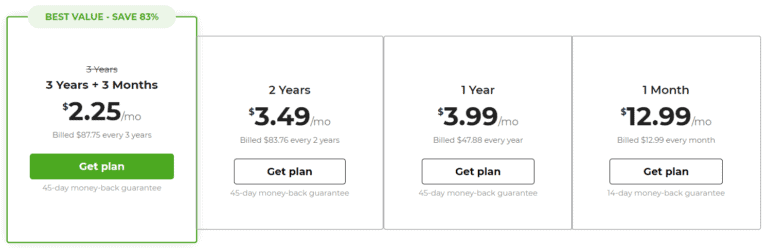
- Start your router and complete the CyberGhost setup process, depending on your router’s firmware:
- Once you’re done with the setup, connect your Samsung smart TV to the VPN-configured home router. That way, securely unblock Hulu, BBC iPlayer, HBO Max, and other platforms.
How to Setup CyberGhost on Samsung TV via Virtual WiFi Router?
This method works by creating a virtual WiFi network on a PC and connecting your Samsung TV. Of course, CyberGhost VPN must be installed and connected to your PC.
Here’s how to do so:
- Already have a CyberGhost account? If not, grab my CyberGhost hot deals to save big!
- Download the CyberGhost Windows PC app. This setup only works on Windows devices.

- Install and launch the CyberGhost PC app.

- Enter your account username and password, then click “Log in.”

- Click the settings/gear icon at the bottom left corner.

- Select “CyberGhost VPN,” then choose OpenVPN (reliable for routing VPN connections) as your preferred protocol under “VPN protocol.”

- Click the CyberGhost icon in the top left corner, select “All servers,” then type your preferred VPN server country on the CyberGhost VPN search bar.

- Double-click the result to connect.

- Create a virtual WiFi router hotspot on your PC. Check out the video below on how to go about this!
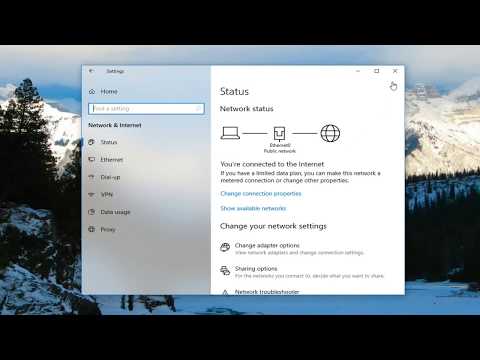
- Start your Samsung smart TV and connect to the virtual WiFi hotspot you created.
- Enjoy unblocking content in 4K and HD video quality without ISPs, network admins, or other third parties snooping!
How to Setup CyberGhost on Samsung TV Using Smart DNS?
CyberGhost still offers a Smart DNS service, but its help center now says the feature is no longer compatible with streaming services. So it won’t unblock your favorite shows/live TVs/movies on your Samsung smart TV; it’s only useful for general DNS purposes.
Note that this method also lacks encryption, making your traffic visible to your ISP and network admins. However, it means an extra speed boost.
Here’s to accomplish that:
- Purchase CyberGhost VPN services.
- Log in to your CyberGhost VPN client account dashboard.
- Click “Smart DNS” on the left side menu.

- Click “Enable Smart DNS.”

- Select “DNS Addresses for TV,” then copy one of the DNS addresses listed.

- You may also see a “Streaming” tab with more DNS addresses, but CyberGhost says they no longer work with streaming services.

- Start your Samsung smart TV and change the TV’s DNS address to the one obtained from steps 5 or 6 above. The video below will help you if you’re at a loss!

- Restart your Samsung smart TV. To unblock streaming content, use the router, virtual WiFi router, or Fire TV Stick method instead.
How to Setup CyberGhost on Samsung TV via Fire TV Stick?
CyberGhost VPN offers an Amazon Fire TV stick VPN application.
Therefore, if you’ve got a FireStick, you’re a few settings away from unblocking your Samsung smart TV streaming platforms.
- Not yet a Ghostie? Subscribe using these fantastic CyberGhost deals for big savings!
- Set up your Fire Stick on your Samsung Smart TV.
- Install and set up CyberGhost VPN on the Samsung smart TV by downloading its Amazon Fire TV stick app. The Video below should help you to execute the process without hassles.

- Start streaming Plex live TV channels, Netflix libraries, or your preferred content channels seamlessly and buffer-free.
The Ultimate CyberGhost VPN-Samsung TV Promise
Despite lacking VPN apps for non-Android smart TVs, you can harness CyberGhost’s reliable content unblocking across 9400+ servers to access geo-restricted content on your Samsung Smart TV.
Choose from the VPN setup methods above, and you’ll be on your way to exclusive Netflix libraries, out-of-market sports games, BBC iPlayer shows, and other geo-restricted content.
Don’t forget to grab my CyberGhost VPN deals for huge savings and a 45-day risk-free guarantee!
Explore More
-
 NordVPN Speed Test (2026): Our Results on a 200 Mbps Line, the Fastest Servers and Fixes for a Slow Connection
-
 NordVPN for IPTV (2026): Fire TV and Android Box Setup, Buffering Fixes and the Legal Line
-
 NordVPN for Sports Betting (2026): What a VPN Can and Can’t Do With FanDuel, DraftKings, Bet365 and BetMGM
-
 How to Use NordVPN (2026): Setup, First Connection, Settings and Switching Locations
-
 NordVPN + NordPass (2026): Which Plans Include the Password Manager, and Is the Bundle Cheaper?
-
 NordVPN Military Discount (2026): Extra 15% Off for Military, Teachers, Healthcare and First Responders

