You can set up Surfshark for Apex Legends on PC by subscribing to the VPN and connecting to a server. Xbox, PlayStation, and Nintendo Switch can’t run the Surfshark app, though, so on a console you’ll pass the VPN through a Windows PC’s hotspot or a Surfshark-enabled router.
I’ll show you everything in this guide, including how to get lightning-fast speeds and the lowest ping.
Get Surfshark for Apex Legends
How Do I Play Apex Legends on PC Using Surfshark?
Follow the below step-by-step guide to connect Apex Legends with Surfshark on PC:
- Subscribe to Surfshark.
- Download and install Surfshark on your PC.
- Log in to the app using your credentials.

- Click the cog icon on the left-side menu to open the settings menu.

- Select “VPN settings.”

- Click on the “Protocol” drop-down menu and choose “WireGuard.” WireGuard delivers fast speeds for modes like Battle Royale and Team Deathmatch.
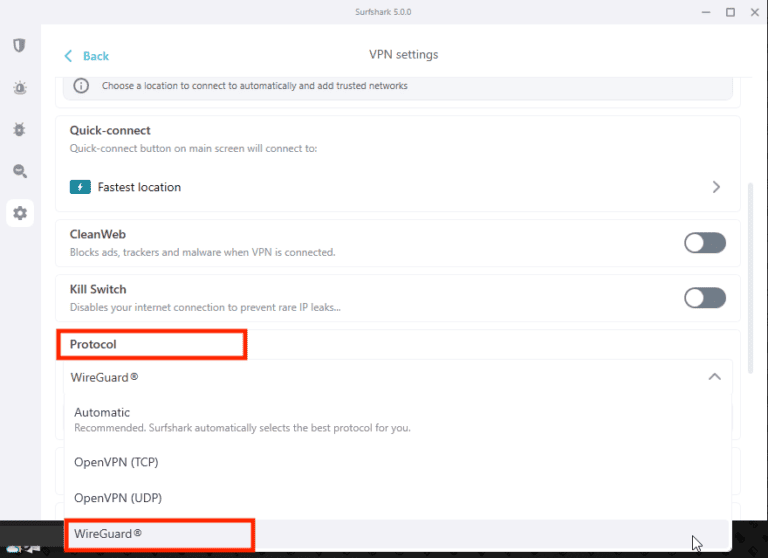
- Go to the locations menu and pick a server closer to your location for fast connection speeds and low ping.

- That’s it! Now you can play high-octane matches in Apex Legends without losing matches due to your ISP throttling your connection!

How Do I Play Apex Legends on a Console With Surfshark?
Surfshark ended its SmartDNS service in February 2026, so there’s no DNS address to paste into your console anymore. Surfshark’s own PlayStation and Xbox pages use a VPN router or a Windows PC that shares its connection instead.
I use the Windows hotspot on my PlayStation 4 because it needs no extra hardware. For whole-home coverage, see my Surfshark router guide.
Here are the steps:
- Purchase Surfshark and install its app on a Windows PC.
- In the app, open Settings > VPN settings > Protocol and choose OpenVPN (UDP), since Surfshark’s Windows hotspot guide requires OpenVPN.
- In Windows, go to Settings > Network & internet > Mobile hotspot and switch it on.

- Search Windows for “Network connections,” right-click the Data Channel Offload for Surfshark (“DCO”) adapter, and choose Properties.
- On the Sharing tab, tick “Allow other network users to connect through this computer’s Internet connection,” select the adapter your hotspot created, and click OK.
- Connect Surfshark to a nearby server.
- Turn on your console and go to “Settings.”

- Choose “Network” then “Set Up Internet Connection.”

- Choose “Use Wi-Fi.”

- Select “Easy” under “How do you want to set up the internet connection?”
- Pick your PC’s hotspot and enter its password.
- Select “Test Internet Connection,” then launch Apex Legends to play matches in Storm Point or World’s Edge without seeing high ping or lag!

Keep the PC awake while you play; if Surfshark disconnects, so does the console.
Streaming on that PS4 too? NordVPN still offers SmartDNS for that (here’s how), though it won’t change your Apex ping.
What’s the Best Surfshark Server for Apex Legends?
All Surfshark servers are best for Apex Legends to avoid ISP throttling.
However, for the lowest ping and fast connection speeds, any server closest to your location is the best for playing Apex Legends.
I connected to a server in Singapore with WireGuard as my protocol.
Here are the speed and ping results (note my base speed was 175Mbps with ping between 10ms and 70ms):

I also successfully used Surfshark with Apex Legends to connect to different servers to play with other players and escape bot lobbies.
That said, several users reported that Apex Legends bans VPN users.
To avoid this, you can purchase a Surfshark Dedicated IP.
When you connect to a Dedicated IP server, Apex Legends will not detect you using a VPN since your IP address is static and unshared with other users.

Surfshark Not Working With Apex Legends?
If you aren’t able to play Apex Legends with Surfshark on your PC, try one of these solutions:
- Disable Surfshark’s antivirus.
- Disable the auto-startup of Surfshark.
Here’s how to disable them:
- Open the Surfshark app and click the “Antivirus” section.

- Turn off “Real-time protection.”

- Click the “Start” menu and search “Task Manager.”

- Open the “Services” section.

- Locate and right-click “Surfshark Antivirus” and select “Stop.”

- Locate “Surfshark Service,” right-click it, and select “Stop.”

- Close “Surfshark.”
- Select the “Startup” section at the top.

- Locate “Surfshark,” right-click it, and select “Disable.”

- Open the “Processes” section in the Task Manager.
- Type “Surfshark” and quit all its background processes by clicking “End Task.”

There you go! The antivirus service is disabled and the auto-start feature is turned off, which stops all the background processes contributing to the problem.
You can now open Surfshark, connect to a server, launch Apex Legends, and play without issue!
Get Surfshark for Apex Legends
Wrapping Up!
Surfshark has a large server network and provides dedicated IP addresses for playing Apex Legends without being detected as using a VPN. It also offers various security features, like DDoS protection, to protect you from DDoS attacks from sore losers.
Plus, Surfshark is the only VPN provider that offers unlimited simultaneous device connections!
Take advantage of these Surfshark discounts on your next purchase!